


Is Video2X free?
Yes. Video2X is a free, open-source framework mainly for anime video/image upscaling and frame interpolation. You can run it locally using its supported processing engines.
Is there a free AI video upscaler? What is Video2X?
Video2X is a free, open-source AI video upscaler. Creators and tech enthusiasts often consider it when they want to upscale video without paying for commercial software. But what does Video2X do, how does it work, and is it the right choice for your AI video upscaling needs?
This hands-on review examines Video2X's features, strengths, limitations, and best settings for different use cases, then compares it with alternatives to help you decide which option is the best for you.
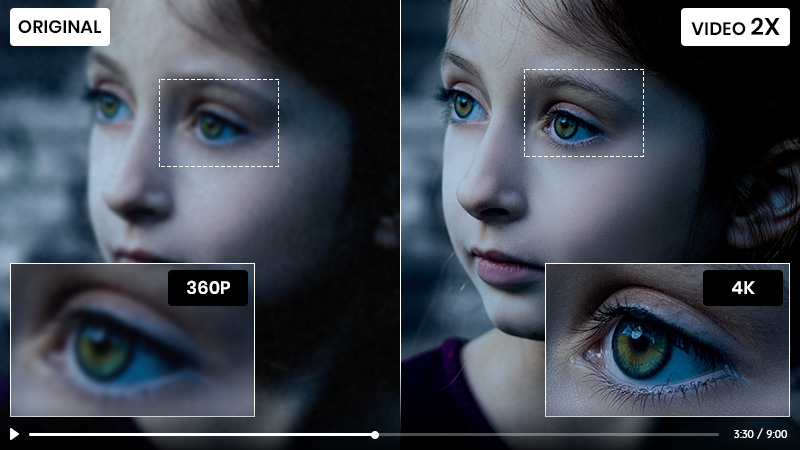
Yes, Video2X is still worth considering if you are technically inclined and want more flexible controls over open-source upscaling models, particularly for anime or short clips. It may be less convenient if you want an easier workflow for mixed footage. The best choice depends on the source video, the settings, and how much setup you're willing to do.

Prefer a simpler workflow? Any Video Converter Ultimate offers a visual interface and dedicated enhancement options for anime, portrait, and other video footage. It also offers an all-in-one video processing workflow, including video downloading and conversion, generation, enhancement, and editing.
Video2X is a free, open-source framework for video upscaling and frame interpolation. It began as a project inspired by the waifu2x image upscaling approach and has since expanded to support multiple processing backends for videos, images, and GIFs. Because the choice of backend can affect both image detail and artifacts, I tested Video2X on the same source clips and compared the results, processing time, and settings.

| Category | Details |
| Input support | Videos supported by FFmpeg, plus common image formats and GIFs |
| Operating systems | Native apps are available for Windows and Linux. No native macOS installer is listed |
| Supported engines | Anime4K, Real-ESRGAN, Real-CUGAN, and RIFE, supported through ncnn and Vulkan |
| CPU requirement | AVX2 support required; Intel Haswell (2013+) or AMD Excavator (2015+) |
| GPU requirement | A Vulkan-compatible discrete GPU is recommended. Listed compatible generations include NVIDIA Kepler (2012+), AMD GCN 1.0 (2012+), and Intel HD Graphics 4000 (2012+). |
| Main functions | AI video and image upscaling; frame interpolation with RIFE |
| Option | Best Fit | Trade-off |
| Qt6 GUI | Non-technical users who prefer a visual interface | Easy to navigate, but need to try different models and settings manually |
| CLI | Technical users who want scripts, repeatable commands, or automation | Flexible and automatable, but requires command-line familiarity and configuration |
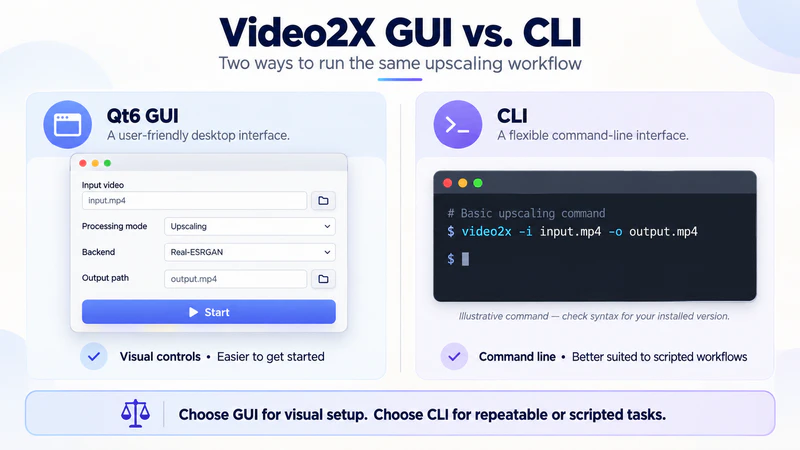
For non-technical users who aren't comfortable with command-line tools, start with the GUI, which offers a simple, visual workflow with clear settings. For the tech-savvy who are comfortable with the command line and script writing, the CLI is a better fit.
|
|
I tested the Video2X GUI on a Windows 11 (64-bit) laptop with a 13th Gen Intel Core i9-13900HX processor, 16 GB of RAM, and an NVIDIA GeForce RTX 4060 Laptop GPU with 8 GB of VRAM. The results below reflect this setup.
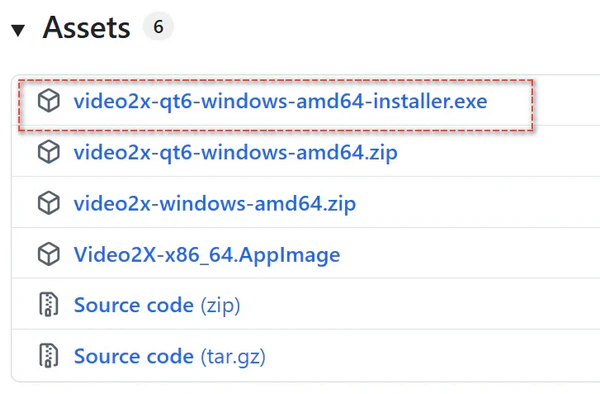
Go to the Video2X releases page and download video2x-qt6-windows-amd64-installer.exe. This is the Windows 64-bit installer for the GUI version.
After installation, open Video2X Qt6. The main interface should look like the screenshot below.
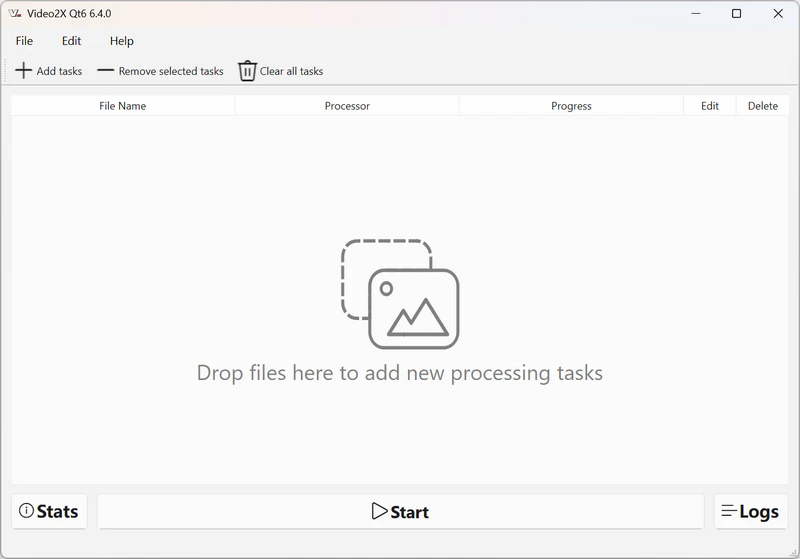
Let's walk through how to upscale video with Video2X Qt6. It also covers the model table, which can help you choose a starting point easily. The later tests show how the selected models performed on specific clips.
Drag and drop a video into the main window, or click + Add Tasks to add one or more videos. After you add a video, Video2X automatically prompts you to configure the processing and encoding settings.
Select a GPU for the upscaling task. I selected the dedicated GPU to speed up processing.
Choose Filter (Upscaling) as the processing mode, then select a filter and, where available, a specific model. If you're unsure which one to use, see the model overview below for a starting point. Check the model name carefully, as a filter may offer models intended for different types of footage.
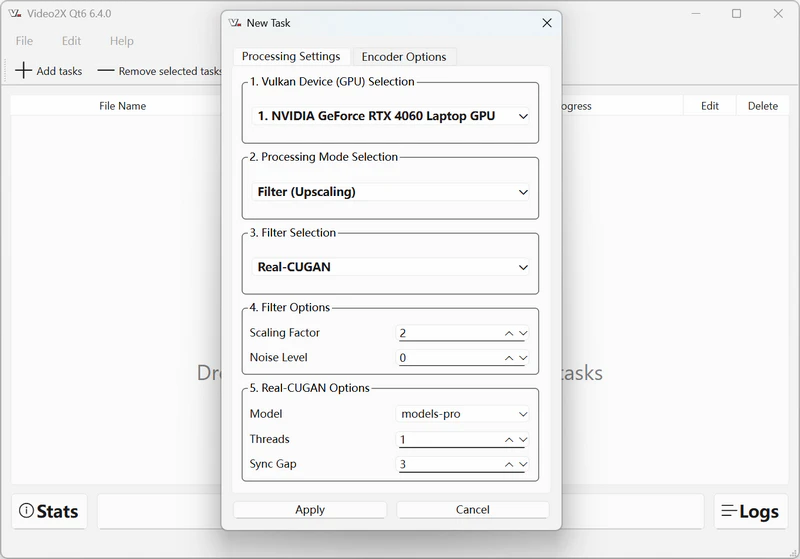
Choose the scaling factor and noise level. Real-CUGAN provides model and noise-level options. A higher noise-level value applies stronger denoising; set it to -1 to disable denoising.
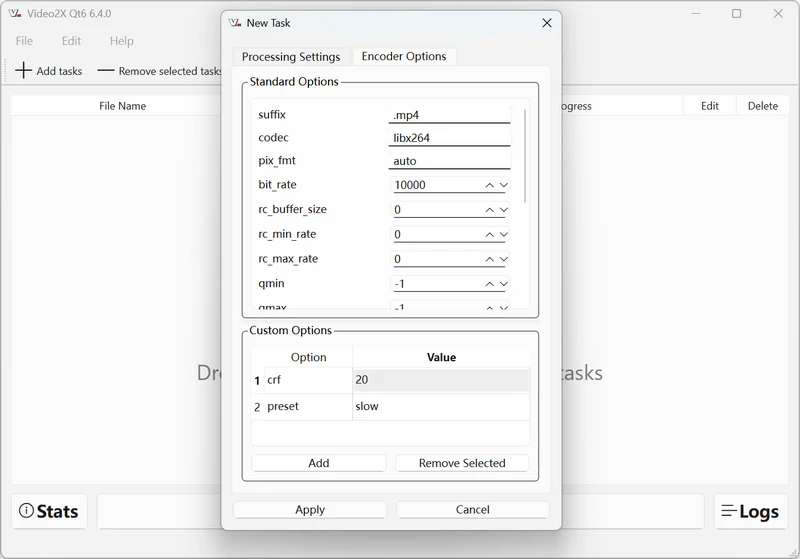
In the encoder options, choose the output container, codec, bitrate, frame rate, and other settings. For this test, I changed the container to MP4 and left the other encoder settings at their defaults.
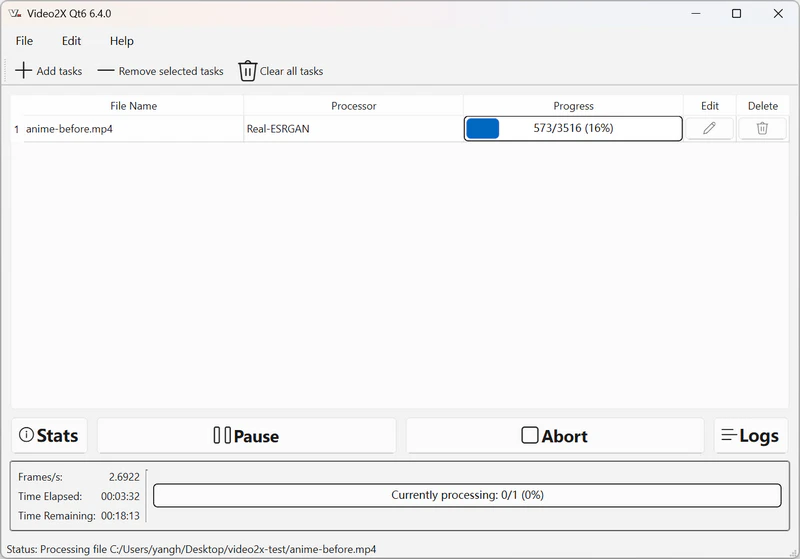
Click Apply to save the settings, then click Start to begin processing.
| Filter / model | Best treated as a starting point for | What to know |
| Anime4K via libplacebo | Upscaling anime video to 4K | Anime-oriented option. Faster processing and a more restrained, natural look |
| Real-CUGAN (models-se, models-pro, models-nose) | Anime and illustration footage | models-se: Balance between speed and quality models-pro: Maximum detail and realism models-nose: Less aggressive smoothing or detail enhancement |
| Real-ESRGAN (animevideov3, plus-anime) | Anime video | Anime-oriented model. Faster processing, but the over-sharpened outlines may lead to an unnatural look |
| Real-ESRGAN — plus | For general image/video restoration | Improve low-quality images or videos to high resolution |
After the setup walkthrough, I tested Video2X with four types of footage to verify which types of video are best suited for upscaling with Video2X. The results below show the visible changes after AI upscaling, how the processing models compared, and how long each clip took to process. Note that these findings only apply to the samples and settings used in my tests. Results may vary with other footage and different settings.
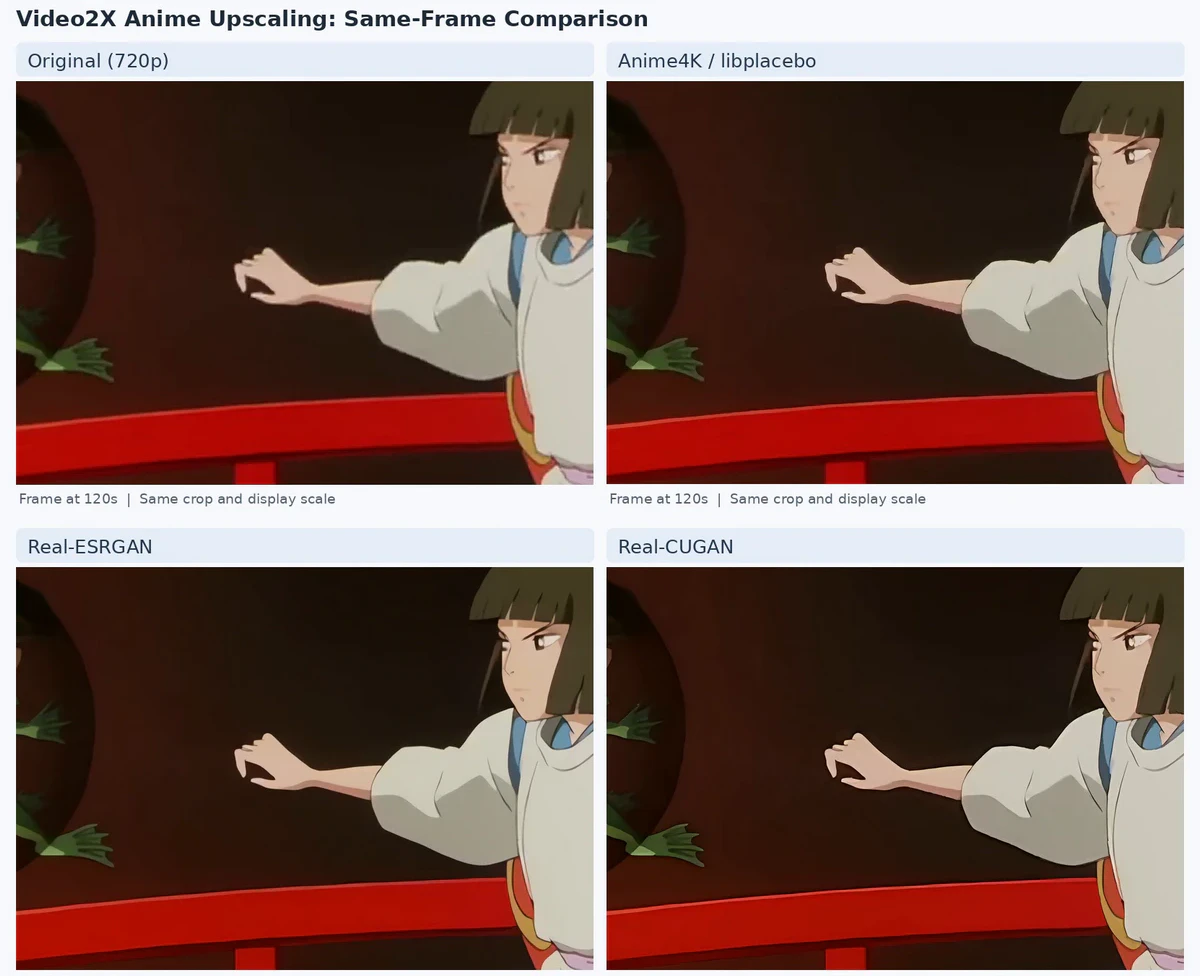
In my test on a 720p anime clip, the Real-ESRGAN anime video model (realesr-animevideov3) produced the sharpest result, making edges and textures stand out more. Anime4K via libplacebo made subtler changes and stayed closer to the source's original look, while the Real-CUGAN models-pro model appeared softer overall. Real-CUGAN also offers an adjustable noise level, which lets you control noise reduction. However, it took 31 min 25 sec to upscale this 2:27 clip to 4K, compared with 11 min 48 sec for Anime4K/libplacebo and 8 min 54 sec for Real-ESRGAN. For stronger sharpening, try Real-ESRGAN first. For a more restrained and natural look, compare libplacebo and Real-CUGAN on your own footage.
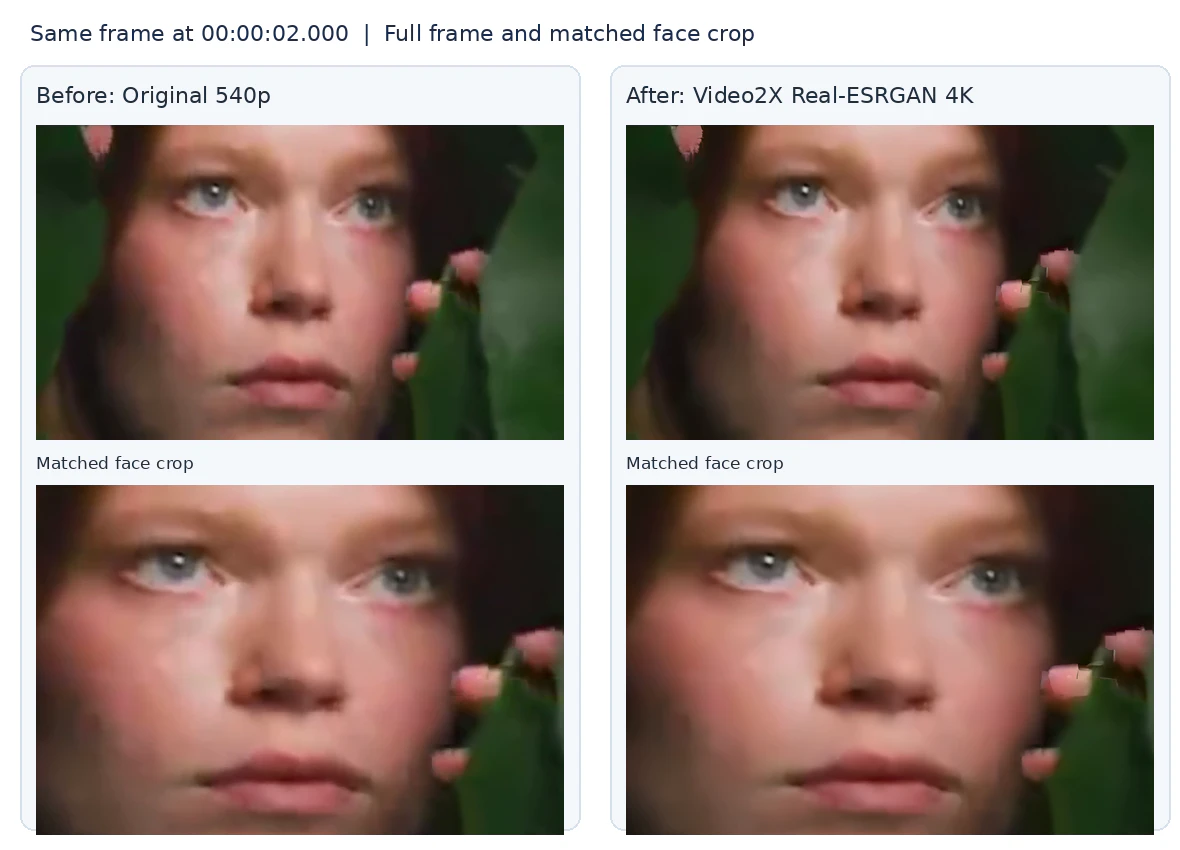
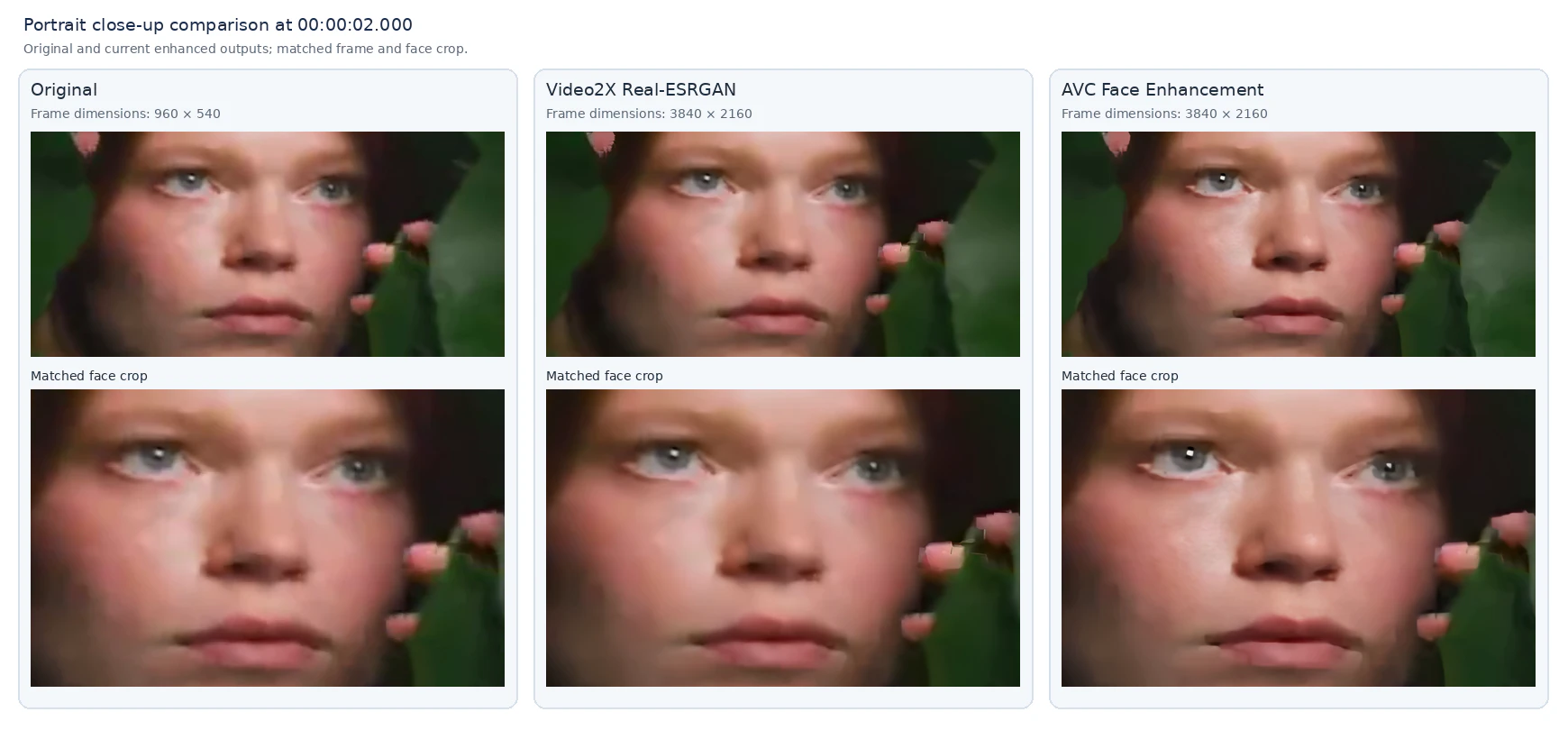
On this 540p face close-up, Video2X's Real-ESRGAN output looked sharper, especially around the eyes and facial contours. However, the skin remained somewhat smooth, and minor artifacts were visible around the lips and nearby flower edges. The upscale improved the clip's apparent clarity, but it could not recover facial details missing from the source.
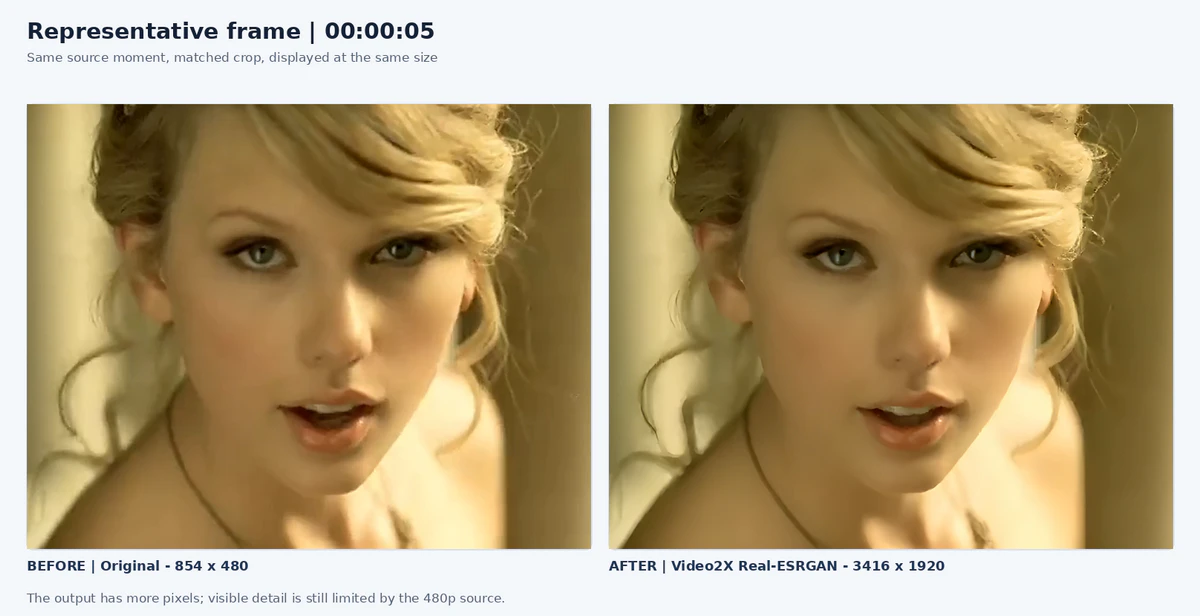
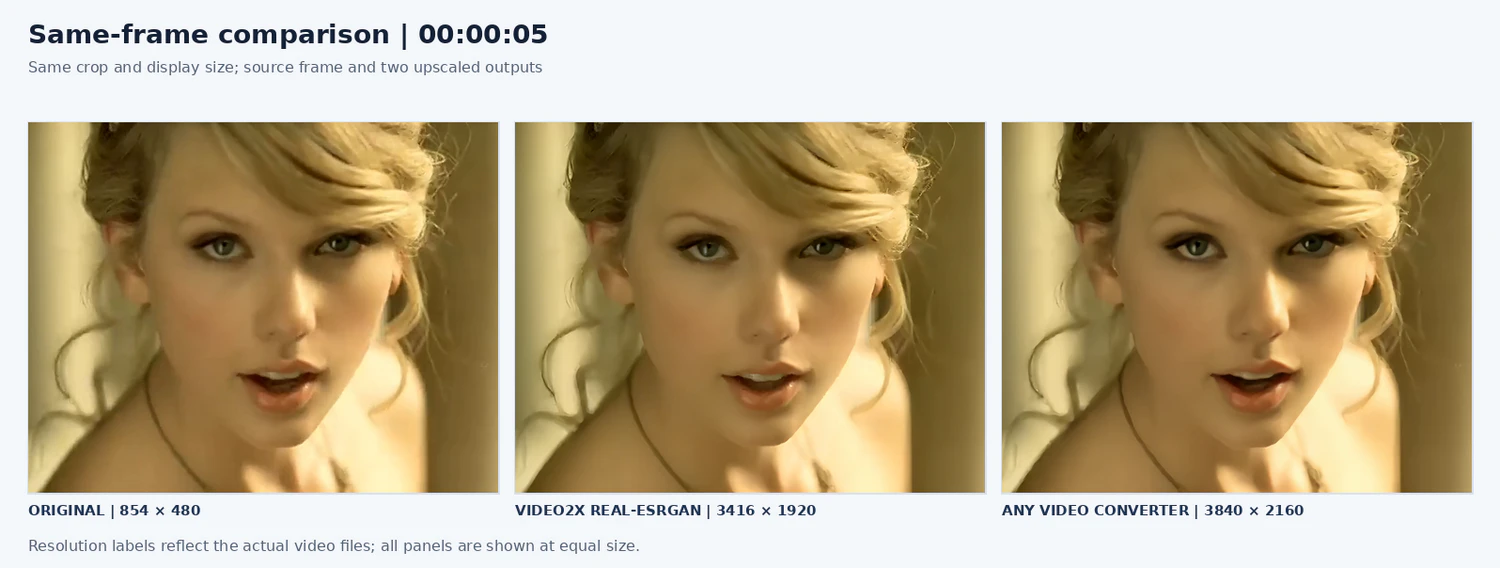
On this 480p live-action music video clip, Video2X Real-ESRGAN upscaled the frame to 3416 x 1920 and made some facial and hair edges appear more defined. However, the result still looked soft, and the upscale could not restore detail missing from the source. In this sample, Video2X provided a modest visual change rather than a clear restoration.
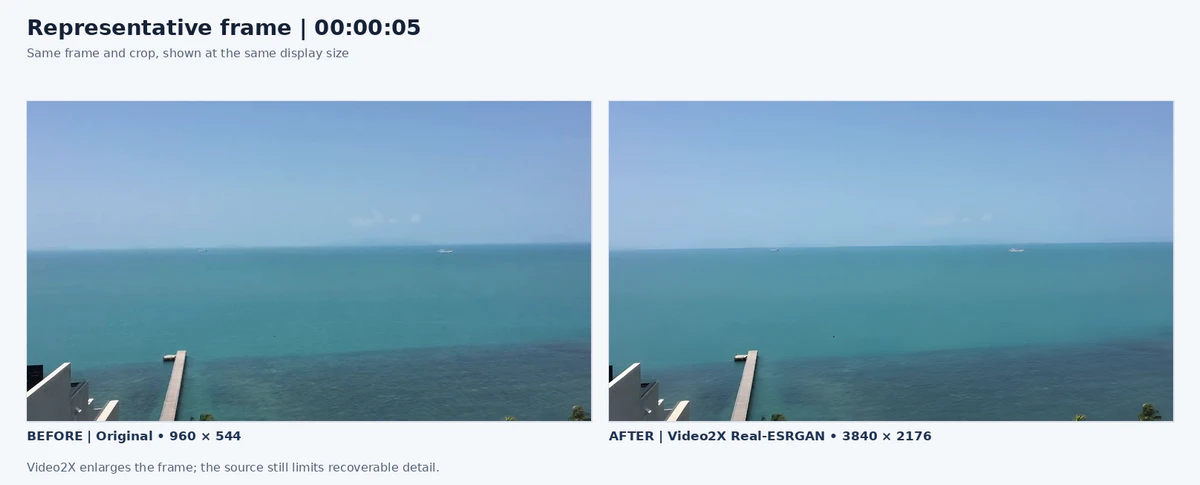
On this 960 x 544 coastal clip, Video2X Real-ESRGAN upscaled the footage to 3840 x 2176. The output keeps the broad shapes of the coastline and pier, but the sky, water, and distant boats show little additional detail. In this sample, the main benefit was a larger output frame rather than a clear improvement in fine detail.
| Test Sample | Filter / Model | Output Resolution | Processing Time | Approx. Processing Time per Frame (sec/frame) |
| Anime clip (2:27, 720p) | Anime4K via libplacebo | 3840 x 2160 | 11 min 48 sec | ≈ 0.20 sec |
| Anime clip (2:27, 720p) | realesr-animevideov3 via Real-ESRGAN | 3x scale | 8 min 54 sec | ≈ 0.15 sec |
| Anime clip (2:27, 720p) | models-pro via Real-CUGAN | 3x scale | 31 min 25 sec | ≈ 0.53 sec |
| Portrait close-up (6 sec, 540p) | Real-ESRGAN-plus | 4x scale | 6 min 51 sec | ≈ 2.78 sec |
| Music video (33 sec, 480p) | Real-ESRGAN-plus | 4x scale | 24 min 21 sec | ≈ 1.80 sec |
| Coastal landscape (10 sec, 960 x 544) | Real-ESRGAN-plus | 4x scale | 17 min 47 sec | ≈ 3.43 sec |
Video2X is worth trying for anime upscaling, with multiple dedicated anime-oriented models that let you compare enhancement looks. In my tests, results on the live-action and landscape clips showed limited visible detail improvement, though the output resolution was higher. Your results may vary with the source footage, model, and settings.
Processing speed varied by clip and model. The 2:27 anime clip took 8 min 54 sec to 31 min 25 sec to process, depending on the model. The shorter portrait, music-video, and landscape clips also took several minutes each. These results show that processing time can be substantial, even for short clips, and should be treated as specific to my test setup rather than a general speed benchmark.
Video2X offers flexible controls and several anime-oriented models, but its setup and model selection may take some experimentation. If you prefer an easier workflow with enhancement options for different types of footage, Any Video Converter is worth considering.
Any Video Converter Ultimate includes dedicated options such as face enhancement and anime enhancement, alongside general video upscaling models. In my tests, I tried it on portrait, music-video, and anime clips. The results varied by source and settings, so the examples below show what it produced on those specific samples.
What's more, its visual interface and preset workflows may also be easier to navigate if you do not want to configure a command-line tool.

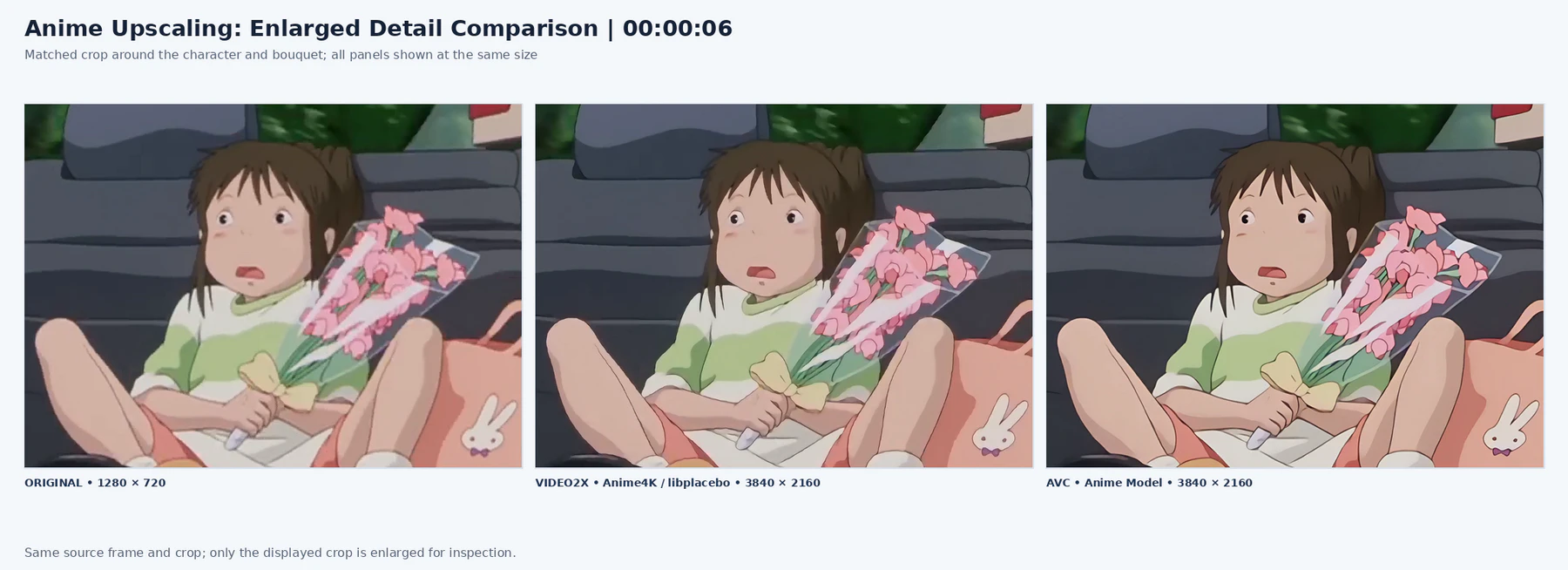
Any Video Converter Ultimate is another good option for anime video upscaling. In my test, both it and Video2X's Anime4K/libplacebo output upscaled the same 720p anime clip to 4K. The result from Any Video Converter Ultimate looked sharper, while the Video2X output appeared softer. Which look you prefer may depend on the footage and your taste.
On this 480p live-action music video clip, Video2X Real-ESRGAN produced a relatively soft, restrained result. Any Video Converter Ultimate made faces, hair, and clothing edges appear more defined, with stronger detail contrast. Neither output can recover genuine detail missing from the source, but Any Video Converter Ultimate made the visible sharpening more noticeable in this sample.
On this 540p portrait close-up, Any Video Converter Ultimate's dedicated face enhancement model produced a sharper-looking 4K result, with clearer facial features and more visible skin texture. Its adjustable enhancement strength lets you balance added detail against a softer, more natural look. Video2X's Real-ESRGAN output was more restrained but remained softer, with less visible improvement in facial detail.
| Test Sample | Video2X Model / Output | Video2X Time | AVC Ultimate Model / Output | AVC Time |
| Anime clip (2:27, 720p) | Anime4K via libplacebo / 3840 x 2160 | 11 min 48 sec | Anime / 3840 x 2160 | 51 min |
| Portrait close-up (6 sec, 540p) | Real-ESRGAN-plus / 4x | 6 min 51 sec | Ultra + Face Enhancement / 3840 x 2160 | 2 min 50 sec |
| Music video (33 sec, 480p) | Real-ESRGAN-plus / 4x | 24 min 21 sec | Ultra + Face Enhancement / 3840 x 2160 | 7 min 23 sec |
On these test clips, Any Video Converter Ultimate finished faster than Video2X in the portrait and music-video tests, while Video2X was faster on the anime clip. Because the settings and output resolutions weren't identical in every test, these times reflect the specific clips and setup rather than a general speed ranking.
Yes. Video2X is a free, open-source framework mainly for anime video/image upscaling and frame interpolation. You can run it locally using its supported processing engines.
Video2X is an open-source project hosted on GitHub. To reduce the risk of downloading a modified installer, use the project's official GitHub repository and verify that you have selected the intended release.
Video2X does not provide a native macOS installer. The project lists native versions for Windows and Linux. If you're looking for a reliable, dedicated video upscaler for your Mac, consider a commercial alternative like Any Video Converter, which offers full Mac compatibility and high-quality AI-powered video upscaling.
Video2X is still available on GitHub, where version 6.4.0 was released on Jan 25, 2025.
There is no one-size-fits-all setting. The best result depends on the clip and your preferred look. In my tests, Real-ESRGAN produced the sharpest result on the anime sample, while Anime4K/libplacebo and Real-CUGAN gave a more restrained look. You can start with a model suited to your footage, and use a 2x or 4x scale based on the source resolution. For Real-CUGAN, test different noise levels to balance denoising and detail.
Video2X is a free, open-source tool for video upscaling and frame interpolation. In my tests, it worked particularly well on anime footage, while results and processing speed varied across other types of clips. Its range of models offers room to experiment, though some settings may take time to learn.
If you want a more straightforward workflow, dedicated enhancement models, or tools for a wider range of footage, Any Video Converter is an alternative to consider. It combines video downloading, conversion, editing, and AI enhancement in one application.

Charlie Campbell is an experienced technical documentation writer with a background in software development and a passion for emerging AI technologies. Dedicated to helping readers stay ahead in the fast-paced digital landscape, he combines technical expertise with clear communication to simplify complex topics and keep audiences informed on the latest advancements.