Get Started with Any Video Converter's Generative Tools
Welcome to our new AI generative tools. Powered by advanced multimodal generative models, it supports text-to-image, image-to-image, text-to-video, image to video, and multi-image/video generation. Enjoy higher visual quality, smoother transitions, and improved motion consistency.


Highlights of the Generative Models of Any Video Converter
1. Poster and logo design. Deliver professional-level composition with strong visual appeal and clear information hierarchy. Ideal for posters, logos, and cohesive brand visuals that communicate your message with impact and precision.
2. Multi-image composition. Smart multi-image composition that locks key elements for consistent, controllable results.
3. Professional-grade photo editing. Faithfully retains faces, lighting, colors, and details true to the original, for natural, high-quality results.
Video Tutorial: Create Your First Image with Any Video Converter
Explore Images Showcases
Get inspired by our ready-made examples or showcases.
Video Tutorial: Create Your First Video with Any Video Converter
Explore Video Showcases
Browse real examples, creative prompts, and visual styles to spark your next AI video idea.
Preparation for Your First Creation
Before getting started with your first creative creation, you'll need to upgrade to the Ultimate plan, which includes the bonus credits for AI creation, or purchase the credits pack to top up credits to your account to access the AI generative tools.
Upgrade to Ultimate: Bonus credits will be automatically added to your account for purchases of V9.1.6 and later. Users with older versions remain eligible for manual redemption. Please contact us to process your request. Comparing the plans of Any Video Converter
Purchase the credits pack: If you are on a Pro or Free plan, purchase a credits pack to access AI creation features. View the credits usage rules
How to Activate Your Credits
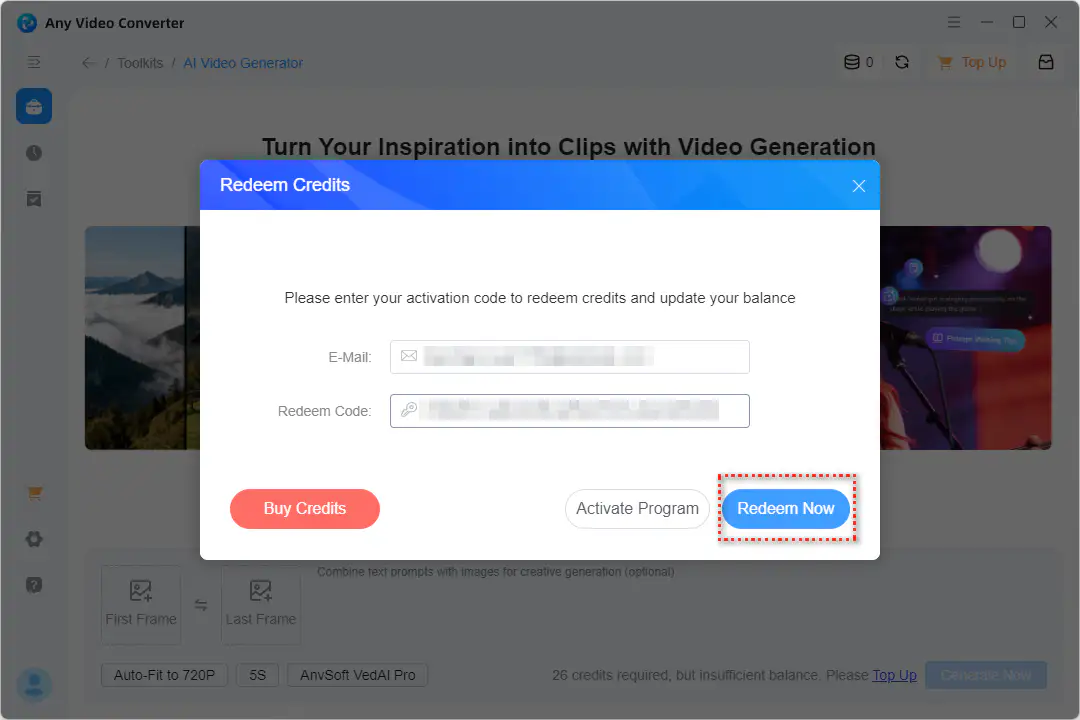
If you purchased a Credits Pack: Click 'Top Up', enter your activation details (Email + Code), and select 'Redeem Now'.
If you upgraded to the Ultimate Version: Click 'Activate Program' and register your account to claim your bonus credits.
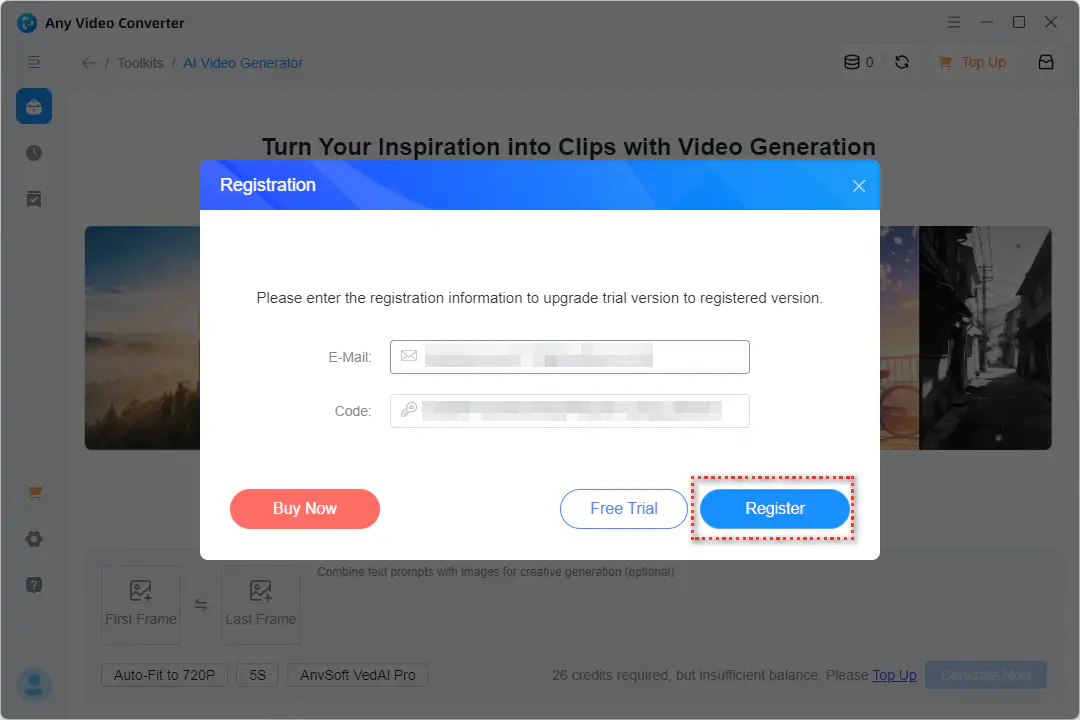
Note: For users who previously purchased the Ultimate version (V9.0.6 or later), bonus credits have been automatically added to your account.
How to Use the AI Generative Tools of Any Video Converter
Step 1 Open the AI generative tool. Launch Any Video Converter and open AI Image Generator or AI Video Generator.
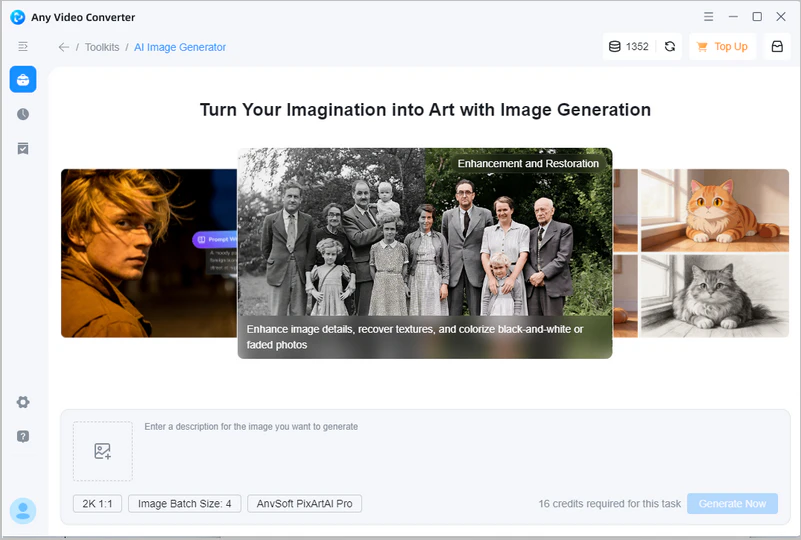
Step 2 Input a text prompt. Type a clear, detailed description of what you want to generate.
⭐ Pro Tips:
Use the formula 'Subject + Style + Composition + Lighting + Constraints' to get the best results. Clearer prompts lead to better generations. See our Prompt Basics to learn more.
Upload reference images to enhance precision, maintain style consistency, and draw inspiration.
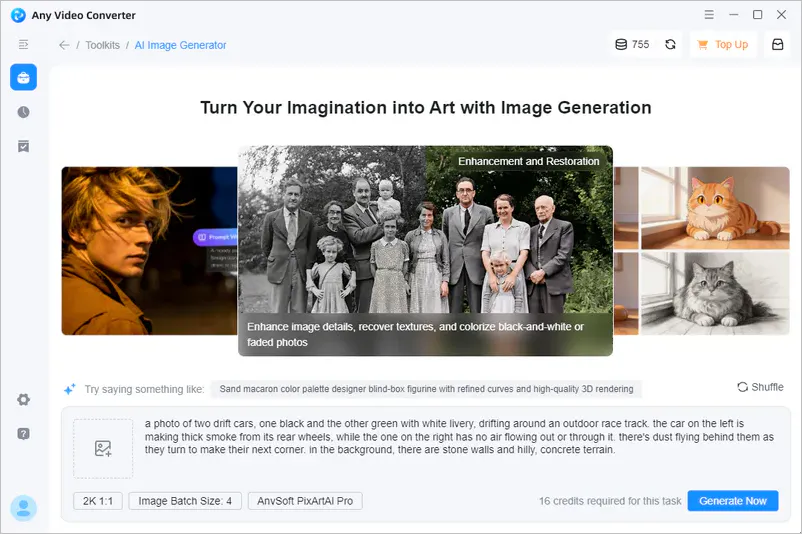
Step 3 Configure your output before generating. Select your resolution, aspect ratio, batch size (1-7 images), video duration (2-12s), and generative model.
Supported resolutions:
- Image: 4K, 2K
- Video: 1080P, 720P, 480P
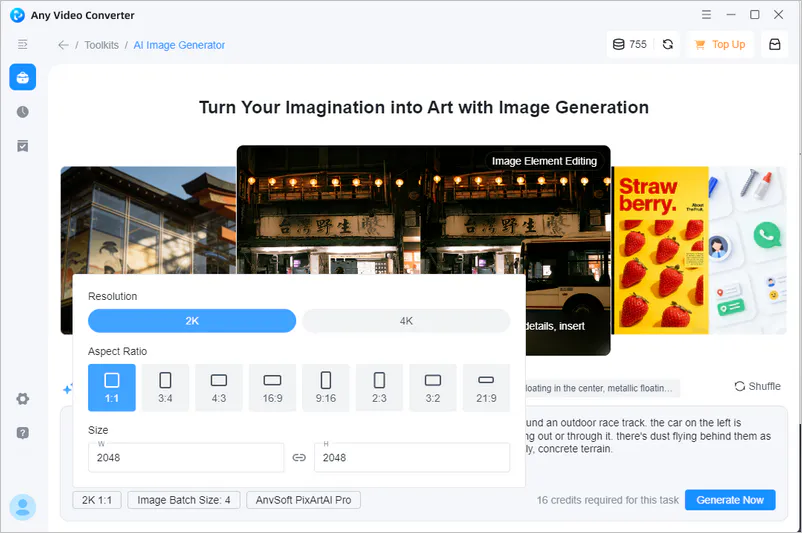
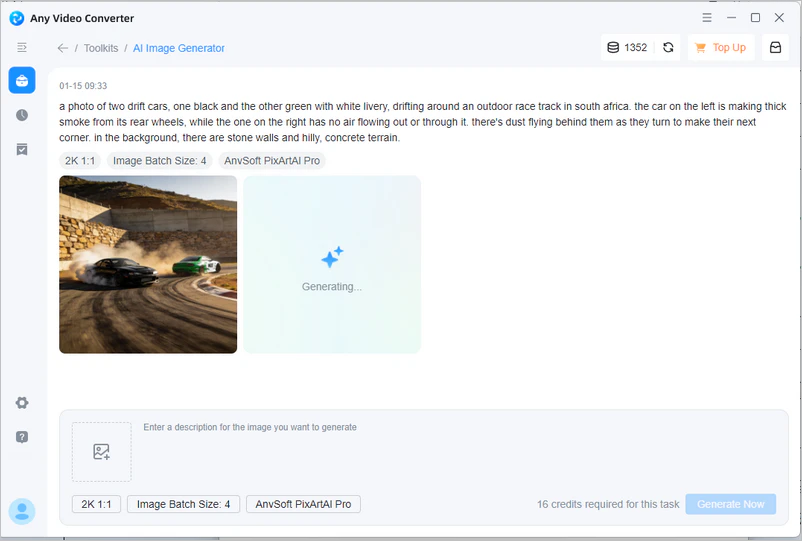
Step 4 Generate your content. Click the blue 'Generate Now' button to bring your vision to life.